Saturday, November 3, 2012

LaTeX Formula in Inkscape Windows 7

The following steps will guide you to get LaTeX formula working in Inkscape running Windows7 (64 bits). 

Step 1 - Install ghostscript
The ghostscript installer gs905w32.exe downloaded from here.

Step 2 - Install ghostview
The ghostview installer gsv50w32.exe downloaded from here.

Step 3 - Install pstoedit
The pstoedit installer pstoeditsetup_win32.exe  downloaded from here.

Step 4 - Install Inkscape
The Inkscape installer Inkscape-0.48.2-1.exe  downloaded from here.

Step 5 - Define path installation folder
  • Right click on computer -> Properties
     
  • Click the Advanced system settings
      
  • Click the Environment Variable
      
  • Select Path and click Edit
      
  • Add (DO NOT REPLACE THE EXISTING VALUE) to the end of variable value, the following paths:
             ;C:\Program Files (x86)\pstoedit;C:\Program Files (x86)\gs\gs9.05;C:\Program Files (x86)\Ghostgum\gsview
     
Step 6 - LaTeX Formula should be available and it works!
     

Sunday, June 10, 2012

Fixing mysql problem after upgrading 12.04

I have Open Conference System (OCS) installed in my laptop. I use this local OCS for trial purpose before implementing any customized settings to the real server. 

After upgrading my Ubuntu to 12.04, my OCS does not work. Every time I type localhost/ocs in the browser it says:
Database Connection Fails! 

I can make mysql back as usual after re-configuring mysql.

Step 1 - Reconfigure mysql-server
Open Ubuntu terminal: Ctrl+Alt+T
~$ sudo dpkg-reconfigure mysql-server-5.5


Step 2 - Check mysql running normally
~$ sudo service mysql status

the command shows running status: 
mysql start/running, process 6459

Saturday, February 4, 2012

Create SMath launcher in Unity Environment (Ubuntu)

SMath requires mono to run. Running SMath from the terminal by typing a typical command
mono /folderlocation/SMathStudio_Desktop.exe

The following steps create an SMath launcher on unity desktop. Running SMath can be just clicking the launcher.

Step 1 - Installation gnome-panel
Open Ubuntu terminal: Ctrl+Alt+T
~$ sudo apt-get install gnome-panel

Step 2 - Create launcher using gnome-panel
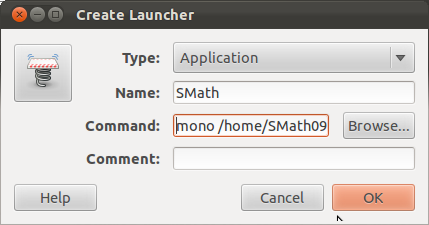
~$ gnome-desktop-item-edit ~/Desktop/ --create-new
Name:       SMath
Command: mono /home/SMath091/SMathStudio_Desktop.exe

/home/SMath091 is the path location of the executable file SMathStudio_Desktop.exe

Confirming OK will create an icon on your desktop.
 Step 3 - Change icon with SMath icon
  • Download SMath icon svg image (smath.svg) from this link and save in a folder
  • Right click the smath icon on your desktop then select properties
  • Click the icon, go to the folder where you save smath.svg
  • Now running SMath is just clicking this SMath icon.